
Start or join a fleet
Open the Fleet tab. To start one, enter a Fleet name and tap Create. To join one, enter the Invite code you were sent and tap Join. You can be in several fleets.
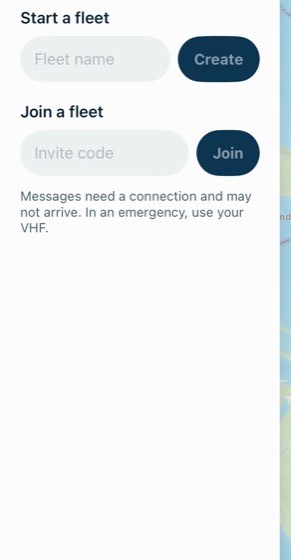
When you join, everyone in the fleet can see your position, speed, direction and depth. You can turn that off.
Invite boats
There are two ways, and any member can do either:
- Share the code. In Boats, under Invite a boat, tap Share the code. It sends a link, along with the code in case the link doesn't open.
- Invite someone directly. Find them, open their profile and tap Add to fleet. They're asked to accept before they join.
If you're invited, you'll see who invited you, with Join, Decline and Not now. Not now keeps the invite under Boats. If you decline, they aren't told.
See where every boat is
Each boat that's sharing appears on your map by name. When you zoom out, nearby boats merge into one "Fleet · N boats" label. Tap it to spread them out.
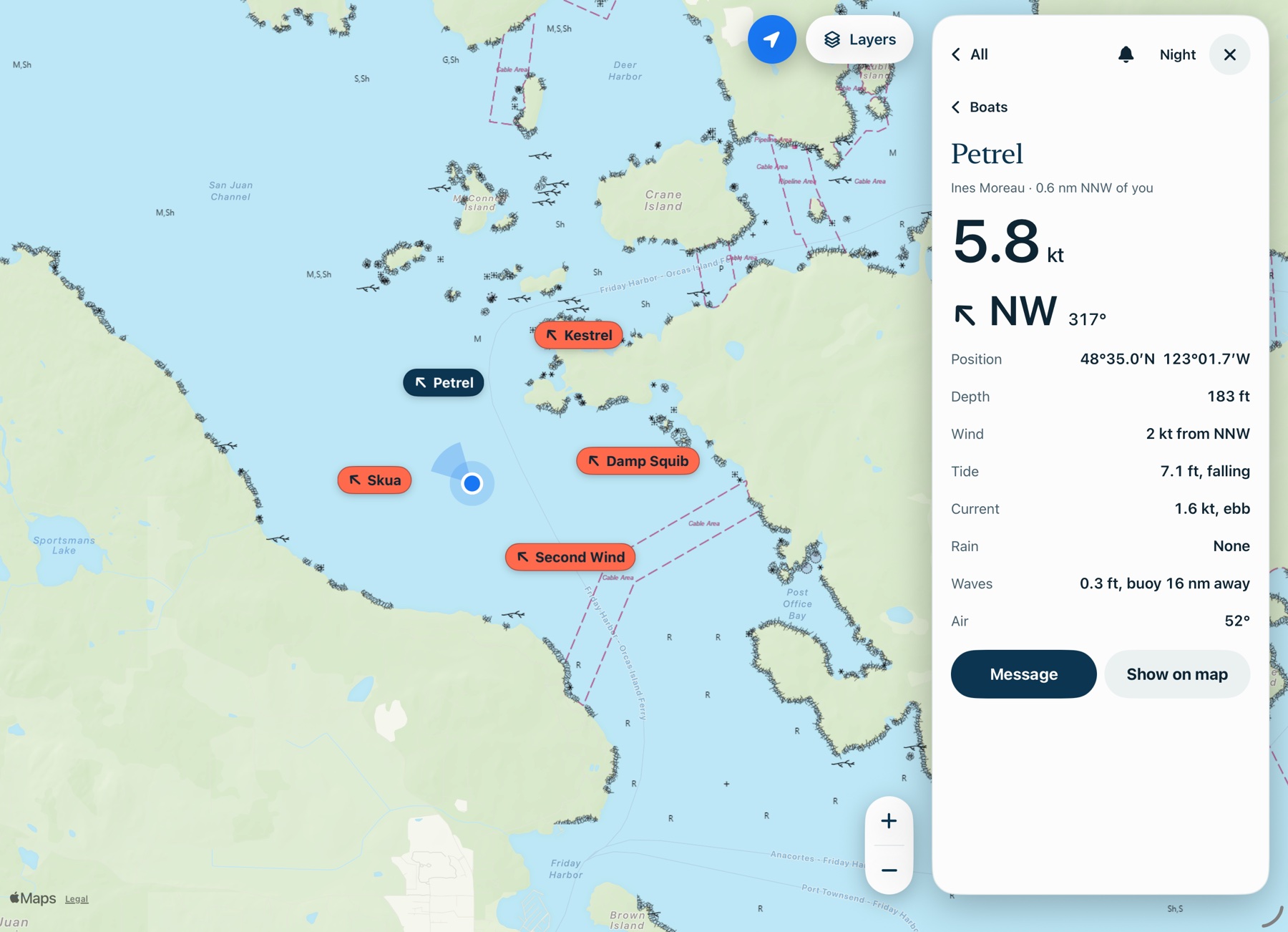
Tap a boat for its speed, direction, position, depth, wind, tide, current, rain, waves and air, plus Message and Show on map.
Boats lists everyone with how far away they are and in what direction, such as "1.2 nm NE".
Chat with the fleet or one boat
- Open Chat.
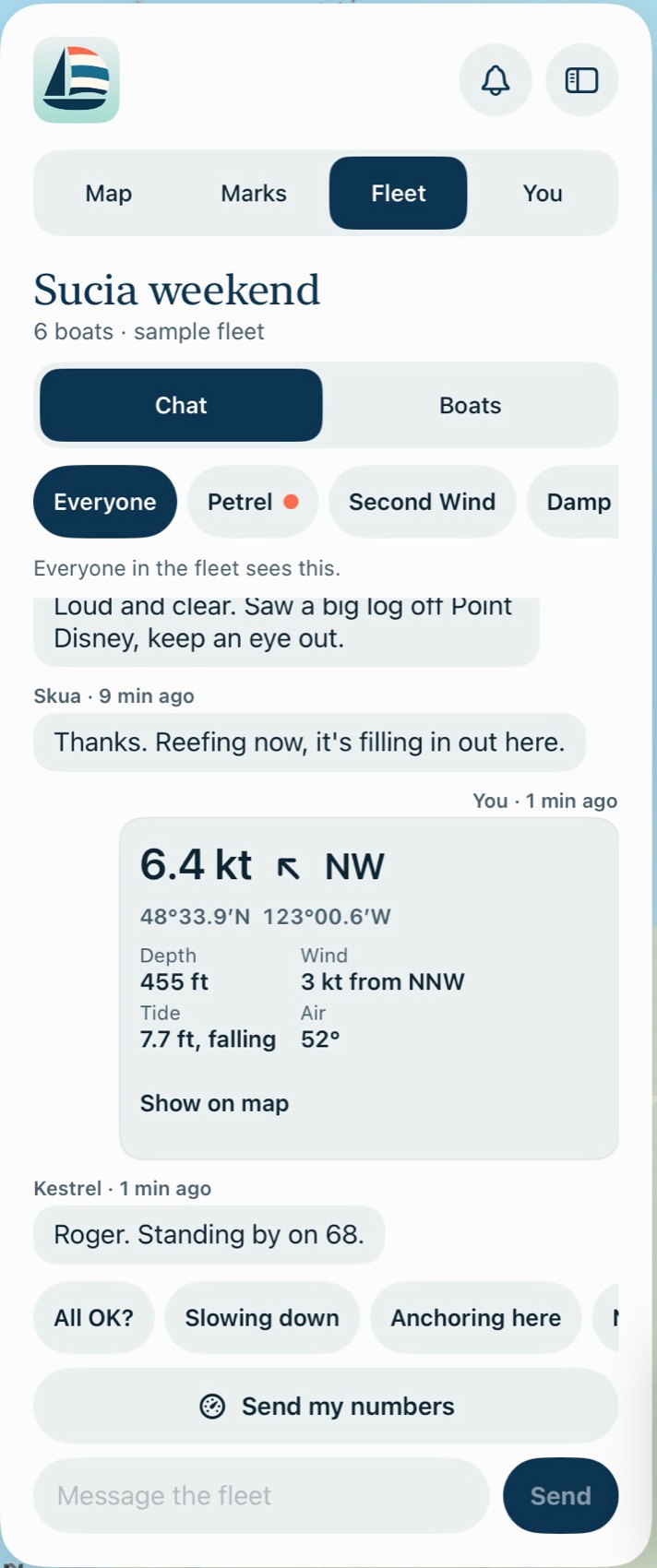
- Choose Everyone, or tap a boat for a private message. A coral dot marks unread private messages.
- Type your message, or tap a quick reply: All OK?, Slowing down, Anchoring here or Need a hand. Quick replies send right away.
Fleet messages also arrive as notifications, if you've left those on. Hold a message from someone else to report it or block them.
Share your numbers
Tap Send my numbers to post a card with your speed, direction, position, depth, wind, tide and air. Anyone can tap Show on map to find you.
Send a route
- Go to You, then Routes, and open a route.
- Tap Send to fleet and choose a fleet.
It appears in the chat. Others can tap Show on map to see your latest version, or Save to my routes to keep their own copy, which doesn't change when you edit yours.
Stop sharing, switch or leave
- Share my numbers: this is in Boats, for each fleet. Turn it off and your boat leaves everyone's map at once. You can still chat.
- Switch fleet: tap the arrows beside the fleet's name.
- Leave fleet: this is in Boats. You can rejoin later if you have the code.
Manage your fleet
If you started the fleet, Boats also has Manage fleet:
- Change the Fleet name.
- Remove a boat. It stops seeing the fleet right away, but could rejoin with the invite code.
- Delete fleet. This removes the fleet and its messages for everyone, and can't be undone.
If you leave a fleet you started, nobody takes over managing it unless you rejoin.
Common problems
A boat has gone gray.
We haven't heard from it for over five minutes, so it may not be where it's drawn. Boats says when it was last heard from. After 12 hours it's no longer shown.
My message says "Not delivered yet. Still trying."
It hasn't reached our server, usually because you're out of coverage. It goes out when you're back. Never rely on chat in an emergency.
A boat says "Position not shared."
They've turned off Share my numbers. You can still message them.
The code didn't work.
Check it with whoever invited you. If they deleted the fleet, the code no longer works.
Next: Marks and posts